How to Build a Habit Tracker in Google Sheets (Step-by-Step)
A step-by-step guide to building a habit tracker in Google Sheets — including conditional formatting, a streak formula, and an honest look at when a spreadsheet is the wrong tool.
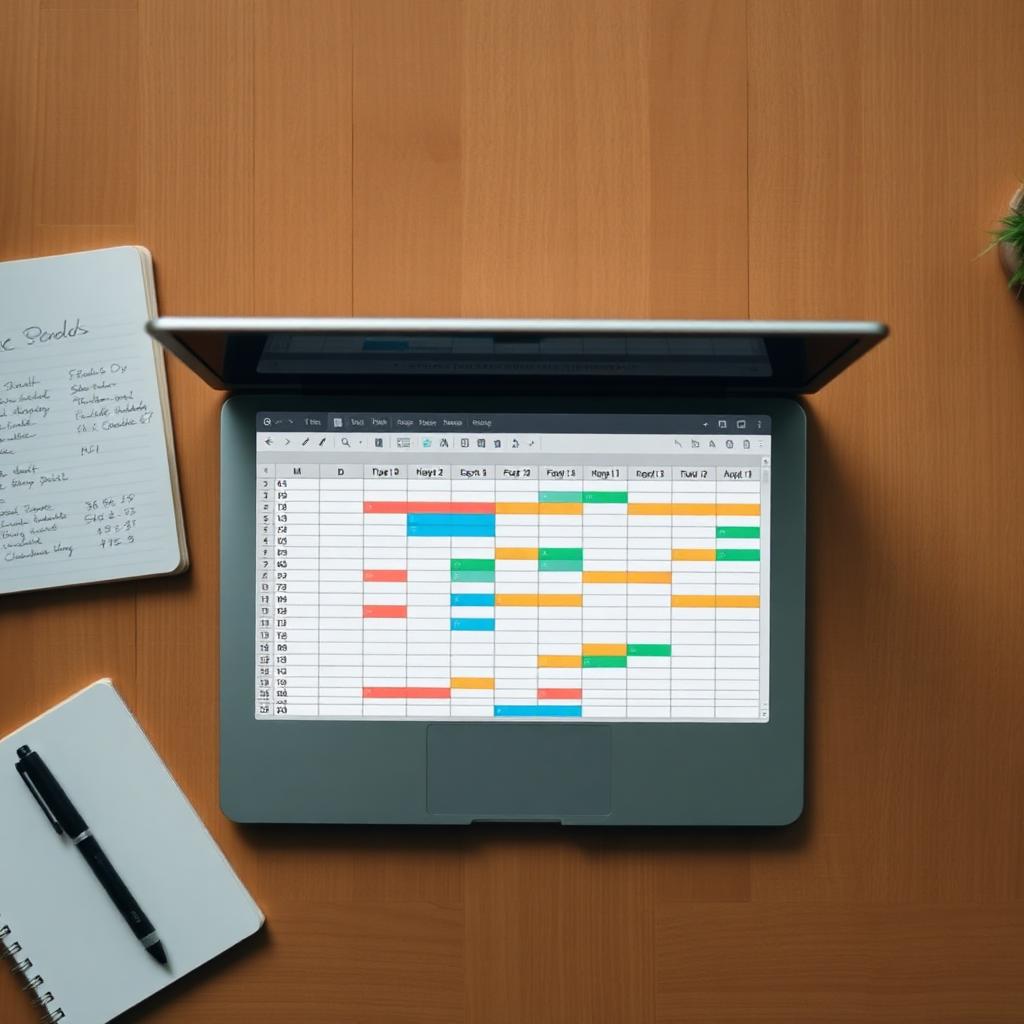
Google Sheets is the most underrated habit tracker on the internet. It's free, it syncs across devices, it does basic math without complaining, and it lets you design exactly what you want without learning a database. The trade-off — it has no notifications and no mobile-first UI — is real, but for the right person and the right habits, the spreadsheet wins.
This is a step-by-step build. You'll have a working tracker in about fifteen minutes. Then we'll talk about when this is the right tool and when you should switch.
Step 1: Set up the grid
Open a new sheet. In column A, starting at row 3, list your habits — one per row. Five to seven is plenty. In row 2, starting at column B, type the dates of the current month: 1, 2, 3, all the way to 28, 30, or 31.
In row 1, merge the date cells above each week and label them "Week 1," "Week 2," etc. Not essential, but it makes the grid readable.
Freeze the first column and the first two rows (View → Freeze). Now the labels stay visible as you scroll.
Step 2: Design the marking system
Pick a single character for "done." Most people use 1 or x. Avoid checkmarks — they're harder to type quickly on a keyboard. Leave blank for "not done." Use a slash (/) for "planned rest day" if you want to distinguish them.
Why a single character? Because the entire daily log should be a single keystroke per habit. If you have to open a dropdown, you'll quit by week three.
Step 3: Conditional formatting (the part that makes it work)
Select the whole grid (B3 to whatever's the end of your last habit row, last date column). Format → Conditional formatting → "Format cells if" → "Text is exactly" → 1 (or x). Pick a green background.
Add a second rule for / with a grey background.
Now your grid shows a green checkerboard of completions at a glance. This is what makes a spreadsheet tracker actually motivating — you stop reading numbers and start reading the picture.
Step 4: The completion ratio column
In the column right after your last date (let's say AG), add a header "Done." In each habit row, use the formula:
=COUNTIF(B3:AF3, "1") & "/" & (COUNTA(B$2:AF$2))
This shows, for each habit, completions over days elapsed. At month's end you get your honest ratio — 23/30, 17/30 — without doing any arithmetic.

Step 5: A current-streak formula (optional)
Streaks in a spreadsheet are fiddly but doable. The cleanest approach: count consecutive 1s from the right (most recent date) backwards until you hit a blank.
For habit row 3 ending at column AF, this array formula works:
=IFERROR(MATCH(FALSE, ARRAYFORMULA(B3:AF3="1"), 0)-1, COUNTA(B3:AF3))
Adjust the range to your actual columns. If formulas like this make you nervous, skip the streak column — the completion ratio alone is enough to drive behaviour.
Step 6: Duplicate the sheet each month
At month's end, right-click the tab → Duplicate. Rename to the new month. Clear the data cells (select B3:AF[last row] and press Delete). Update the date row. Carry forward your completion ratios for trend tracking on a separate "Yearly summary" sheet if you want.
Make it work on mobile
The Google Sheets mobile app is functional but slow. Two tricks help. First, bookmark the sheet on your phone's home screen — fewer taps to open. Second, log at a fixed time each evening (after dinner, before bed) rather than at the moment of the habit. The friction of opening Sheets is too high for in-the-moment logging; treat it as an evening ritual instead.
If you find yourself skipping the evening log more than twice a week, the friction is winning. Don't fight it — switch to an app.
When a Google Sheets tracker is the right tool
You want full control over the layout. You're already in Sheets daily for work. You're tracking quantitative habits (minutes, pages, calories) where the math matters. You enjoy the design process. You want to own the data forever, not rent it from an app.
When it's the wrong tool
You need notifications. You want to log habits at the moment they happen rather than in an evening pass. You travel a lot and don't always have your laptop. You've already tried a spreadsheet tracker twice and quit. You want a coach to surface patterns you'd never spot manually.
In those cases, a dedicated app earns its keep. HabitPal handles the notifications, the one-tap logging, and the pattern detection — the three things a spreadsheet can't do. Many people use both: an app for the daily moment, a sheet for the monthly summary they want to keep forever. That hybrid setup is genuinely strong.
The honest verdict
A Google Sheets habit tracker is excellent for the right person — typically someone who already lives in spreadsheets and wants total control. For everyone else, the setup is more fun than the using. Build it if you'll genuinely enjoy the build. Otherwise, the cheaper path to consistency is a free app and a notebook for the weekly review.
Read next
For other formats, see Habit Tracker Template or the Notion setup guide.
Ready to build the habit?
HabitPal is the gentle AI coach behind every article on this blog.